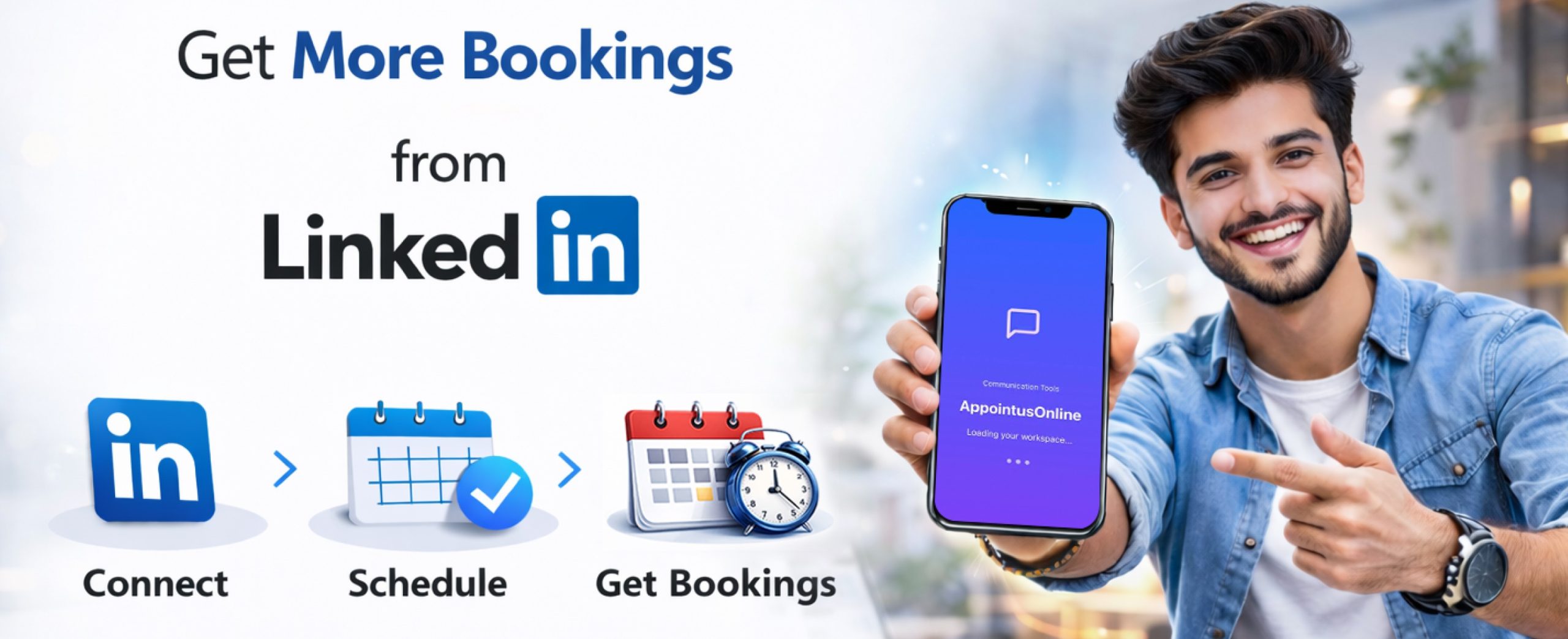
Get More Bookings from LinkedIn with Appointusonline
LinkedIn is often where trust is built long before the need becomes urgent. But the classic problem is the same every time: you have a good conversation, interest is high, and then everything stalls at “should we find a time?”.
This article shows how to turn LinkedIn into a simple, low-friction path from profile and DMs to an actual booked meeting, with Appointusonline as the hub:
Add a clear “Book an appointment” button or link to your profile.
Make it ridiculously easy to share your booking link in messages.
Set up reminders, payments, and follow-up so meetings actually happen.
1) Add “Book an appointment” to your LinkedIn profile
Option A: The Premium button (best visibility)
LinkedIn Premium Business, Sales Navigator, and Recruiter Lite can add a custom button on your profile, including “Book an appointment”. The button can appear on your profile and in multiple LinkedIn surfaces (you can toggle visibility).
How to set it up (desktop):
- Go to your profile.
- Click Add custom button.
- Choose Book an appointment.
- Paste your Appointusonline booking link.
- Save.
Agency-style tip: Use a booking page tailored for a “first meeting”, not a generic overview. Short title. Clear expectations. Zero friction.
Option B: The free version (link in “Contact info”)
If you don’t have Premium, you can still add your booking link in the website field under Contact info. It works well, just with slightly less in-your-face visibility.
2) Turn DMs into real meetings (without writing a novel)
When someone says “cool, let’s talk”, your job is to make the next step so easy that they just click.
Recipe: Create 2 to 3 ready-to-paste DM replies:
A) Warm lead (they ask for a meeting):
“Sure. Pick a time that works here: [booking link]. Takes 10 seconds.”
B) Curious lead (wants to learn more):
“Want a quick 15-minute clarification call? Book here: [link]. If none of the times fit, reply with two suggestions and I’ll make it work.”
C) After a comment thread (they liked your content):
“Thanks! If you want to see whether this is relevant for you, book a quick intro here: [link].”
Why this works: You move scheduling out of chat and into the booking flow.
3) Make meetings actually happen: reminders, video, and calendar sync
- Calendar sync (Google / Microsoft 365).
- Automatic reminders after booking and changes.
- Virtual meetings with a one-click join link (Teams / Meet).
- Waiting list so cancellations can be filled.
4) Get paid for your time: use payment at booking where it fits
If you sell consulting, coaching, or paid intro calls, payment at booking reduces admin and filters out the “can I pick your brain for a bit?” meetings.
Appointusonline supports payments via integrations such as Stripe and PayPal.
5) Measure what matters: which LinkedIn actions create bookings?
You don’t need a massive analytics stack, but you should know:
- Which posts generate clicks.
- Which DM templates convert.
- Which services and time slots get booked most.
Practical approach: Create 2 to 3 versions of your booking link (for example with UTM parameters) and use them in:
- Your profile button.
- Your Featured section.
- Your DM templates.
Then you’ll see what actually works.
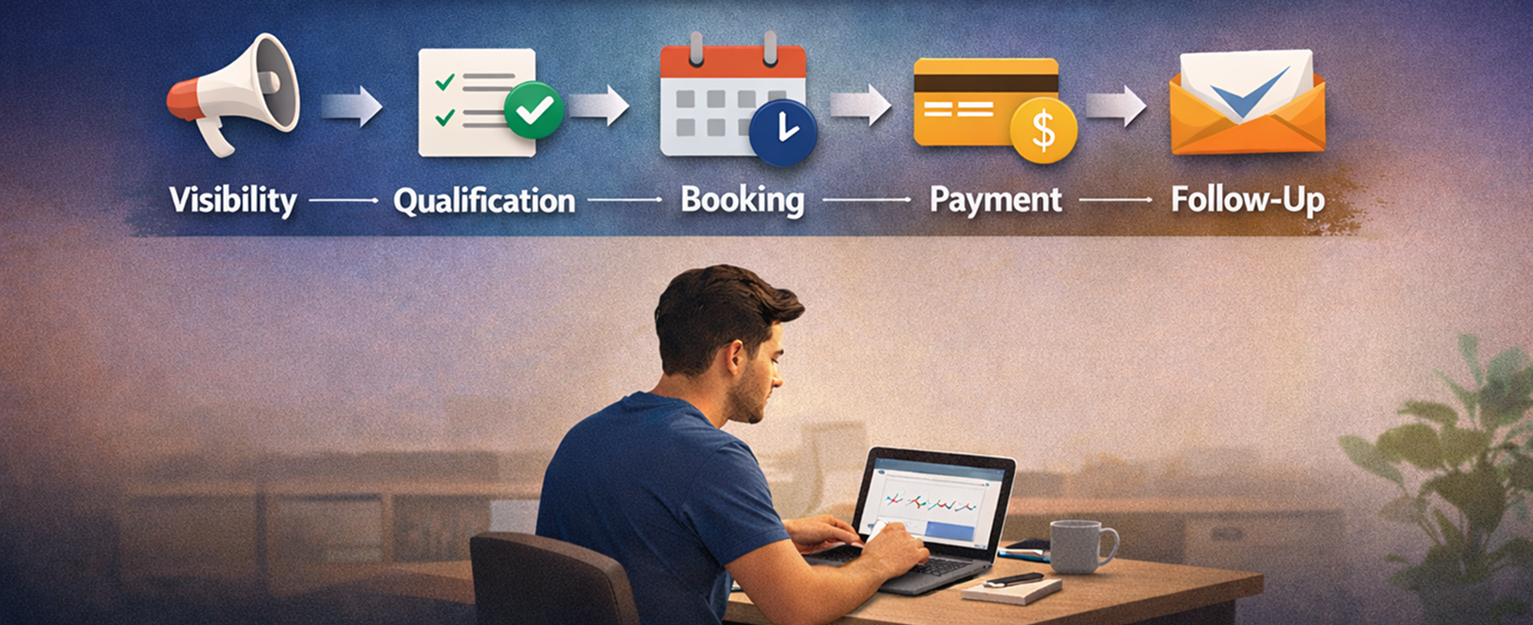
6) Automate follow-up (so you look bigger than you are)
The solo-entrepreneur trick isn’t doing more. It’s doing less manually.
Use integrations (for example via Zapier) to build a simple flow: New booking → create lead → send welcome message → add to follow-up sequence.
Mini checklist: “LinkedIn → Booking” setup in 20 minutes
- Create an “Intro call” booking in Appointusonline (short and clear).
- Add the link to LinkedIn: Premium: “Book an appointment” button. Free: website field / Contact info.
- Create 2 to 3 copy/paste DM replies.
- Turn on reminders + (optional) payment.
- Set up basic tracking (GA/GTM) or link variants